
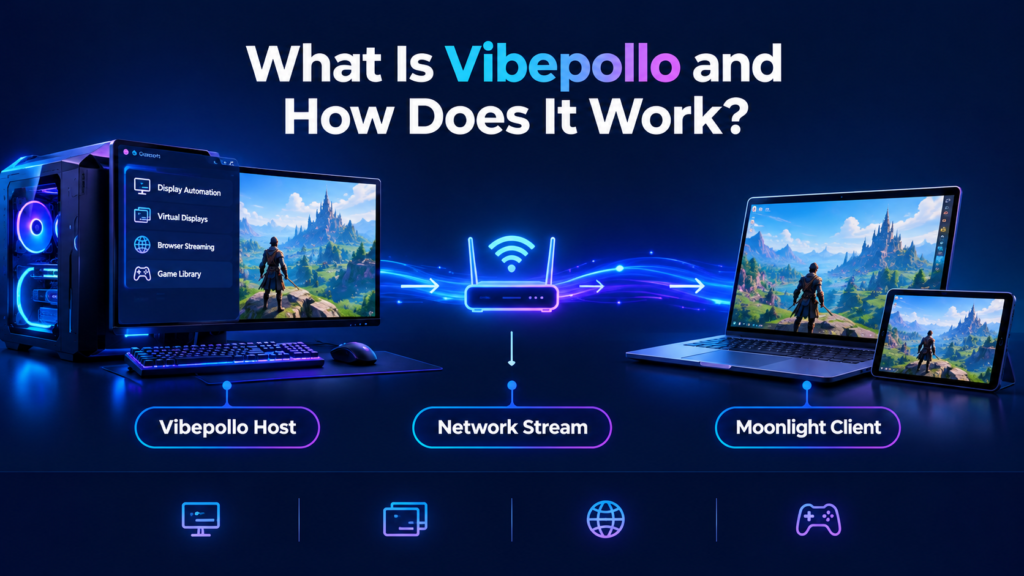
Your gaming PC is in one room, your TV is in another — and buying the same game again for every screen is not a solution. Vibepollo fixes exactly that: it is a free, open-source streaming host that runs on your gaming PC and lets you play your own games on your TV, phone, laptop, or handheld through Moonlight.
In this guide, you will learn what Vibepollo really is, how it works step by step, and how it compares to Sunshine and Apollo — so you can decide in minutes whether it is right for your setup.
What Is Vibepollo?
Vibepollo is a game-streaming host for Windows, with a Linux beta. You install it on the PC that has your games and your graphics card. Then you use a client app called Moonlight on the device you want to play on — your TV, Android phone, iPhone, tablet, laptop, or handheld.
Your gaming PC does all the hard work: it runs the game, renders the graphics, and encodes the video. Moonlight simply shows that video on your other screen and sends your controller, mouse, and keyboard input back to the PC. The result feels like the game is running on the device in your hands, even though it is really running on your PC in the other room.
Vibepollo is developed by Nonary on GitHub. It is licensed under GPL-3.0, which means the code is public and free to use. It is also actively developed, with frequent releases, which matters because game streaming depends on graphics drivers, Windows updates, and encoder improvements.
One important clarification: vibepollo.com is an independent download and guides site for Vibepollo. It is not the official developer website. The official source code and releases are on GitHub at github.com/Nonary/Vibepollo.
Where Did Vibepollo Come From?
To understand Vibepollo, it helps to know the family it comes from:
- Sunshine started this idea. It is a general-purpose, self-hosted streaming host that works with Moonlight. It streams a screen you already have, so on a PC without a monitor you often need a dummy HDMI plug.
- Apollo is a fork of Sunshine. It added built-in virtual displays, so the streamed screen can automatically match the resolution of your client device, along with per-client permissions and extra controls.
- Vibepollo is a fork of Apollo. It keeps Apollo’s virtual display idea and focuses on making everyday use smoother: display automation, recovery when a stream or display gets stuck, a simpler web interface, and deep game-library syncing.
In short, Sunshine is the versatile original, Apollo added client-matched virtual displays, and Vibepollo tries to make the whole experience less fiddly day to day. Vibepollo is designed to replace Sunshine or Apollo as your streaming host — you should run only one host at a time.
How Does Vibepollo Work? The 3 Parts
Vibepollo works in three parts: the host, the client, and the network between them.
1. The Host: Your Gaming PC
The host is your gaming PC with Vibepollo installed. After installation, you open Vibepollo’s web interface in your browser. That is where you create your login, choose which display to stream, add games, manage devices, and check sessions.
Vibepollo can stream a physical monitor, or it can create a virtual display. The virtual display is one of its biggest advantages. It uses a bundled virtual display driver, so it can create a screen at exactly the resolution and refresh rate your client device wants — even if your PC has no monitor attached at all. No dummy plug needed.
When you return to your PC after streaming, Vibepollo also tries to restore your normal desktop layout, instead of leaving your icons and windows rearranged.
2. The Client: Moonlight on Your Other Device
The client is Moonlight, a free and open-source app. You install Moonlight on the device you want to play on. Moonlight is available for Android, iOS, Windows, macOS, Linux, and many TVs and handhelds.
Moonlight finds your PC on the same network, you pair it once with a PIN, and then you can pick a game and start playing. Moonlight sends your controller, mouse, and keyboard input to the PC, and shows you the game’s video and audio in return.
Yes — Vibepollo normally requires Moonlight (or a compatible Moonlight-based client) on the playing device. Vibepollo is the host, Moonlight is the client. They work as a pair. We explain this in detail in our guide: Does Vibepollo Require Moonlight?
3. The Network: The Part Most People Ignore
Your network decides how smooth the stream feels. A wired Ethernet connection on the host PC is best. Wi-Fi 6 on 5 GHz can work well too, but a wired host removes the biggest source of stutter.
Start at 1080p at 60 FPS, get that smooth, and only then try 1440p, 4K, or 120 FPS. A stable lower resolution always feels better than a stuttering higher one. Your GPU’s hardware encoder — NVIDIA NVENC, AMD AMF, or Intel Quick Sync — should do the encoding, not your CPU.
Key Features of Vibepollo
Here are the features that actually matter in daily use:
Virtual displays that match your client. The bundled virtual display driver creates a screen at your client’s resolution and refresh rate, and Vibepollo can recover orphaned virtual screens when a session ends or a monitor wakes up.
Windows Graphics Capture in service mode. Vibepollo can capture with Windows Graphics Capture as a service, which improves stability and frame-rate capture in modern games, including games that use frame generation. It can switch capture methods when needed, so the login screen and permission prompts are still captured.
Game library sync with Playnite, Steam, and Lutris. If you use Playnite as your launcher of launchers, Vibepollo can sync your recently played games automatically, with artwork and sync rules. You can also add games manually from the web interface. This is much closer to the GeForce Experience library experience than adding every game by hand.
Built-in virtual gamepad driver on Windows. Vibepollo ships its own free virtual gamepad driver, so in most cases you do not need to install ViGEmBus separately. It can emulate Xbox Series, Xbox One, DualSense, DualShock 4, and Switch Pro controllers, depending on what your client and game support.
A focused web interface. Instead of ten settings pages, the interface groups the tasks you do most often: pick a display, tune smoothness, manage games and devices, check sessions, and recover a stuck host.
Advanced options for enthusiasts. Vibepollo also supports newer options like PyroWave, a low-latency GPU codec, and VRR capture. These are exciting, but they need a fast wired network and a compatible client fork. Start with standard H.264 or HEVC first, and treat these as upgrades, not requirements.
Vibepollo vs Sunshine vs Apollo
| Vibepollo | Sunshine | Apollo | |
|---|---|---|---|
| Based on | Apollo fork | Original project | Sunshine fork |
| Virtual display | Bundled driver, automatic | Needs a dummy plug or extra tool on headless PCs | Built-in, Windows-focused |
| Best for | Display automation and a smoother library | General-purpose, broad platform support | Per-client displays and permissions |
| Moonlight support | Yes | Yes | Yes, plus Artemis clients |
| Linux host | Arch/CachyOS beta only | Established Linux support | Varies, virtual display is Windows-focused |
There is no single winner for everyone. If you want the most general-purpose host, Sunshine is still excellent. If you want Apollo-style streaming with extra display automation and Playnite sync, Vibepollo is the natural next step.
How to Get Started With Vibepollo
Getting started takes about 15 minutes if your PC and network are already in good shape:
- Download Vibepollo for Windows from the homepage, or from the official GitHub releases page. See our full guide: How to Download Vibepollo for Windows.
- Run the installer on your gaming PC and open the web interface to create your login.
- Choose your streaming display — a physical monitor or a virtual display.
- Install Moonlight on the device you want to play on.
- In Moonlight, select your PC, type the PIN it shows you into the Vibepollo web interface, and pair the two.
- Add a game from Playnite or Steam sync, or add it manually, then press play in Moonlight.
That is the whole loop. When you quit the game, the stream should close cleanly and your PC should return to normal.
Does Vibepollo Support Linux?
Yes, but with an important limit. Linux support is a beta, and it currently targets Arch Linux and CachyOS only, tested mainly on CachyOS with KDE Plasma 6 on Wayland. You need Linux kernel 6.16 or newer with matching headers, and a GPU with hardware H.264 encoding.
There are no AppImage, Flatpak, Debian, Fedora, or Docker builds in this beta. If you are on Ubuntu or Linux Mint and want a stable one-click Linux host today, this beta is not that yet. See our full guide: Does Vibepollo Support Linux?
Is Vibepollo Free and Safe?
Vibepollo is free and open source under GPL-3.0. There is no subscription for the host software itself, because you are streaming from your own hardware.
As with any self-hosted tool, use it sensibly: download it only from a trusted source, keep it updated, use a strong password for the web interface, and do not expose that web interface directly to the internet unless you understand the risk. We cover this in detail in our guide: Is Vibepollo Safe to Use?
One practical note: like some other game-streaming tools, Vibepollo can occasionally trigger a false-positive antivirus warning because of how it captures and injects input. If that happens, check that you downloaded it from a trusted source before you allow it, and do not disable your antivirus for a file from an unknown site.
Conclusion
Vibepollo does not try to replace your gaming PC. It tries to set it free from one room. By combining a smart virtual display, a focused web interface, Playnite library sync, and Moonlight on the other end, it turns the PC you already own into a personal game-streaming server.
If you already like the Moonlight and Sunshine world, Vibepollo feels like the next, more polished step. Download it, pair Moonlight once, and try one game on your TV. That first session is usually the moment it clicks.