
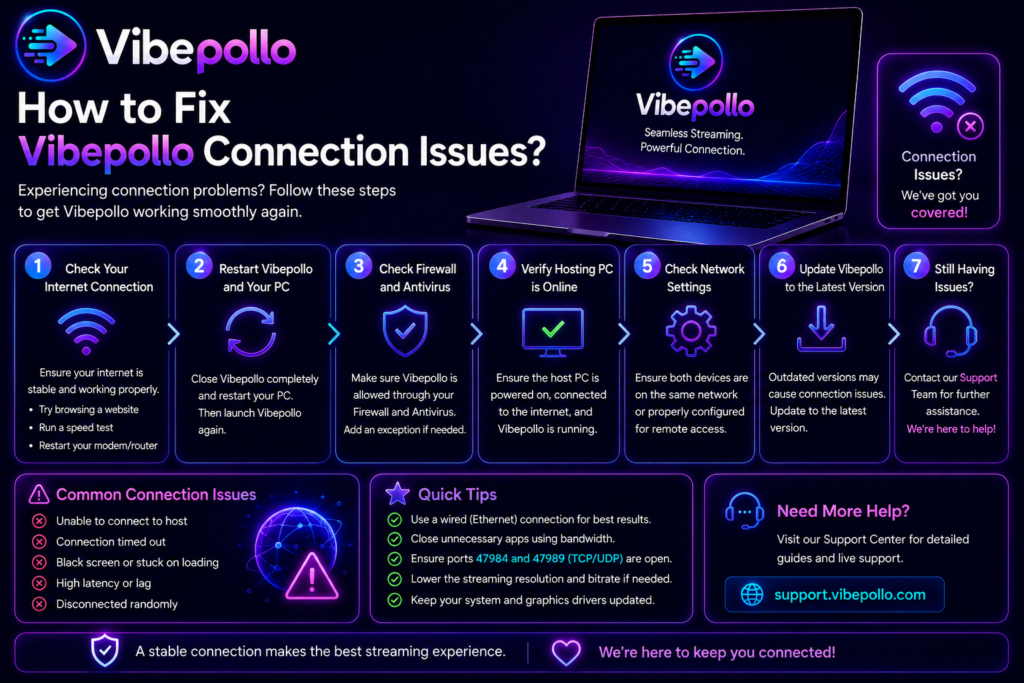
Most Vibepollo connection problems are not a broken app — they are a pairing, firewall, network, or encoder problem, and each one has a different fix. If Moonlight cannot see your PC, cannot pair, or connects but stutters or goes black, do not reinstall blindly. The catch is that all four look identical on screen — ‘it doesn’t work’ — yet each needs a different fix, so fixing them in the wrong order wastes an evening without ever finding the cause.
In this guide, you will diagnose the problem in order — network first, pairing second, encoder third — and fix the actual cause in minutes, instead of changing every setting at once and never learning which one was broken.
Read more: How to Update Vibepollo to the Latest Version?
The Order Matters More Than Any Single Fix
The old version of this post gave browser advice — clear the cache, check DNS — for a problem that has nothing to do with a browser. Vibepollo is not a website. It is a host on your gaming PC, and Moonlight is the client that talks to it over your network. So browser fixes cannot help, and guessing at settings one by one usually makes things worse.
Work in this order, and stop at the step that fixes it:
- Network — can the client and host even reach each other?
- Pairing and firewall — is Moonlight allowed to talk to the host?
- Encoder and display — is the host producing a stream the client can show?
If you skip to step 3 while step 1 is broken, you will change encoder settings for hours and nothing will improve, because the video never left the host.
Step 1: Network — Can They See Each Other?
Start here, always.
Check the basics first:
- Host and client must be on the same local network for first pairing. Pair on your home network first, before you try remote streaming from outside.
- The host PC must be awake. A sleeping PC cannot be seen by Moonlight at all — check power settings before anything else.
- Both devices should be on the same network, not one on a guest Wi-Fi network that isolates devices from each other. Guest networks and some public networks block devices from seeing each other by design.
Test the connection in the simplest way:
- Open Moonlight on the client. Does the host appear at all? If not, the problem is in this section or the firewall section below, not in the encoder.
- If the host appears sometimes and disappears, suspect Wi-Fi: a weak or crowded connection, especially 2.4 GHz Wi-Fi, drops in and out. Move the client closer to the router, use 5 GHz Wi-Fi, or — best of all — wire the host with Ethernet.
- If your internet feels fine but the stream stutters, remember: for home streaming, your local network matters more than your internet plan’s headline speed. The video does not leave your house on a local stream, so a fast internet plan cannot fix a weak local Wi-Fi link.
What to fix at this step:
- Wire the host with Ethernet. This alone fixes more stuttering than any other single change.
- Use strong 5 GHz Wi-Fi on the client if you cannot wire it, and avoid crowded 2.4 GHz Wi-Fi for game streaming.
- Start at 1080p at 60 FPS. A stable lower resolution always feels better than a stuttering higher one, and it also tells you whether the problem is bandwidth: if 1080p60 is smooth and 4K stutters, your network — not Vibepollo — is the limit.
If Moonlight still cannot see the host after this, move to pairing and firewall. Do not change encoder settings yet.
Step 2: Pairing and Firewall — Is Moonlight Allowed In?
Pairing is how Moonlight proves it is allowed to control your PC. If pairing fails, nothing else matters.
If Moonlight cannot pair:
- Open the Vibepollo web interface on the host and check that the host is actually running. A host that crashed or was closed cannot pair, and no client setting will fix that.
- Generate a fresh PIN in the host web interface and pair again from Moonlight. An old, expired, or corrupted pairing is fixed by a clean pairing in minutes — do not keep retrying the same failed pairing.
- Check that only one host is running. Running two hosts at once — for example Vibepollo alongside Sunshine or Apollo — causes conflicts that look exactly like pairing failures.
If the firewall is blocking it:
- When Vibepollo was first installed, Windows asked whether to allow it through the firewall. If that prompt was denied, Moonlight cannot see the host even on the same network. Allow Vibepollo through the Windows firewall, on private networks at least.
- The same applies after an update: a new version can trigger the firewall prompt again. If a stream breaks right after an update, check the firewall before you reinstall anything.
- Do not fix this by turning the firewall off entirely. Allow the one app, on the network you trust, and leave the rest of the firewall alone.
If pairing works but the connection drops immediately:
- This is often still a network problem, not a pairing problem — go back to step 1 and check Wi-Fi strength and Ethernet. A pairing that succeeds and then drops is a connection that cannot stay up, not a pairing that was rejected.
For the full explanation of why Vibepollo needs a client at all, and which clients work, see Does Vibepollo Require Moonlight?
Step 3: Encoder and Display — Is the Stream Itself Broken?
Only reach this step when Moonlight can see and pair with the host, but the stream itself is wrong: black screen, stuttering, freezing, or a stretched image.
Black screen:
- Update your GPU driver and Windows first. Old drivers are a top cause of black screens and encoder errors, and a driver update fixes more of these than any Vibepollo setting.
- Check the display setting in the host web interface. Vibepollo’s virtual display driver creates a virtual screen at your client’s resolution — if the wrong display is selected, or the virtual display has not loaded (often because a restart after install or update was skipped), you get black.
- Restart the host PC. A surprising number of post-install and post-update display problems are simply a driver that has not loaded yet.
Stuttering, freezing, or lag:
- Drop to 1080p60 first, as in step 1. If that is smooth, the encoder or network cannot sustain your higher setting — that is a limit, not a bug.
- Close background recording and streaming apps. Another app fighting for the same hardware encoder (NVENC, AMF, or Quick Sync) will hurt your stream.
- Check that hardware encoding is actually being used. CPU-only encoding is a last resort, not a plan — it will struggle, especially at higher resolutions. If your GPU has no hardware encoder at all, streaming will not fix that: the host still has to run and encode the game.
Wrong resolution or stretched image:
- Check the display choice in the host web interface, and the client’s resolution setting. A mismatch here stretches or shrinks the picture even when the stream itself is healthy.
- Test with one display and one resolution before you change several settings at once. Changing three settings and seeing an improvement tells you nothing about which one fixed it — and you will not know what to undo next time.
A stream that worked last week and fails today:
- Ask what changed since it worked: a Windows update, a GPU driver update, a Vibepollo update, or a router change. The most recent change is usually the cause. Update the other side to match — an old host with a new driver, or a new host with an old driver, is the most common mismatch of all.
Quick Diagnosis Table
Use this to name your problem before you fix it:
- Host does not appear in Moonlight — network or firewall. Start at step 1, then step 2.
- Host appears but pairing fails — pairing or two hosts running. Fresh PIN, one host only.
- Pairs, then drops immediately — network stability. Ethernet, 5 GHz Wi-Fi, 1080p60 test.
- Connects but black screen — display or driver. Restart, update GPU driver, check display setting.
- Connects but stutters or freezes — network or encoder load. Ethernet, 1080p60, close other recording apps, hardware encoder check.
- Connects but picture is stretched or wrong size — display/resolution mismatch. Check host display setting and client resolution.
If your symptom is not in this table, describe it in those terms — what Moonlight shows, and at which step it fails — and you will usually find the step above that matches it.
What Not to Do
These all feel like fixes, and all of them waste time or make things worse:
- Do not reinstall blindly. Reinstalling the same version over a network or firewall problem changes nothing, and you lose the chance to learn what was actually broken.
- Do not clear browser cache or change DNS settings. This is not a browser problem, and those steps were the old post’s mistake.
- Do not run two hosts at once. Vibepollo plus Sunshine or Apollo on the same PC will fight over the same display and encoder.
- Do not expose the host web interface to the whole internet to “fix” remote access. Use a VPN or private network method you control instead.
- Do not change five settings at once. Change one, test, and keep a note of what you changed. The note is what turns a fixed stream into a stream you can fix again next time.
When to Start Over
Starting over is the last step, not the first. Only do a fresh install when:
- You have worked steps 1 to 3 in order, and the host still cannot be seen, paired, or streamed from;
- A previous install was interrupted (a restart during install, a half-installed driver); or
- You have changed so many settings you no longer know what is set.
In that case, uninstall cleanly, restart, and install fresh from a trusted source — homepage or GitHub releases, the Windows package with the .msi installer inside, not the source-code zip — then pair again with a fresh PIN and test at 1080p60.
Conclusion
Connection issues feel mysterious because the symptom — “it doesn’t work” — hides four different causes. Once you split them into network, pairing, firewall, and encoder, and work them in that order, most fixes take minutes, not evenings. The network decides whether the devices can talk, pairing and the firewall decide whether they are allowed to talk, and the encoder decides whether the talk becomes a watchable stream.Fix them in that order, change one thing at a time, and test at 1080p60 before you go higher. That habit alone will solve most connection problems you ever hit with Vibepollo.
Start from the Vibepollo homepage for the latest package and guides, and check the official project releases if your problem started right after an update.